Make
If you use the automation tool Make, you can find our integration by searching their apps for “Deftform”. Here is a direct link: https://www.make.com/en/integrations/deftform
We currently offer 3 modules:
List responses
Make an API call
Watch responses
List responses
This modules allows you to fetch a list of submitted form responses. You will need the form ID for this.
Make an API call
This module executes a custom API request to Deftform using your API token.
Watch responses
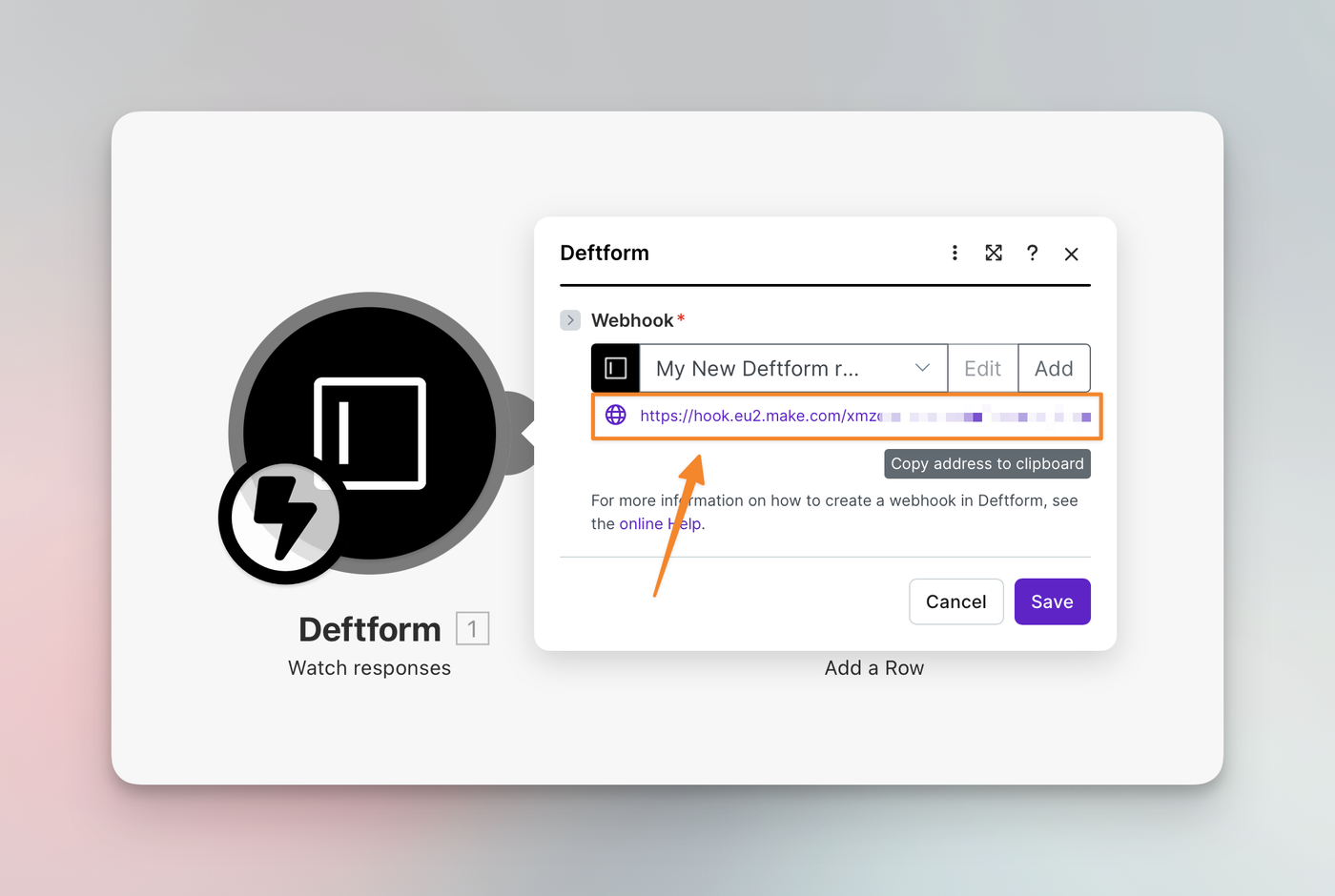
This module triggers when a user submits a new response to a form. You will need to work with a webhook here. In Make, create a webhook URL, then paste this URL into Deftform.
Learn more about our webhooks here.
Using array keys in Make
Since our response to Make includes a data array, handling it can be a bit confusing at first. Here is an example of the response we send:
{ "id": "56c4e599-0cec-4bb3-aac5-6e64076ae805", "number": 9, "number_formatted": "Prefix-9-Suffix", "form_id": "4acb658c-3712-47c6-9b36-06e096c188ae", "form_name": "Make Test", "referrer": null, "data": [ { "label": "First Name", "response": "Mike", "uuid": "ae9f05c9-d306-4166-920f-c63e624f62b4", "custom_key": null }, { "label": "Email Address", "response": "mike@example.com", "uuid": "daf7bc5f-4693-4a72-b023-0ef6255d23fa", "custom_key": null } ]}Fetching keys like number, form_name, or referrer is straightforward. But the data array makes it a little more complicated and that’s most likely what you’re after.
Although we offer a direct Google Sheets integration, let’s assume you want to use Make to listen to responses and add them to a Google Sheet. First off, create a new “Scenario” in Make, select Deftform and connect your Google Sheet.
Click the “Google Sheets” module and find the “Values in columns” section.
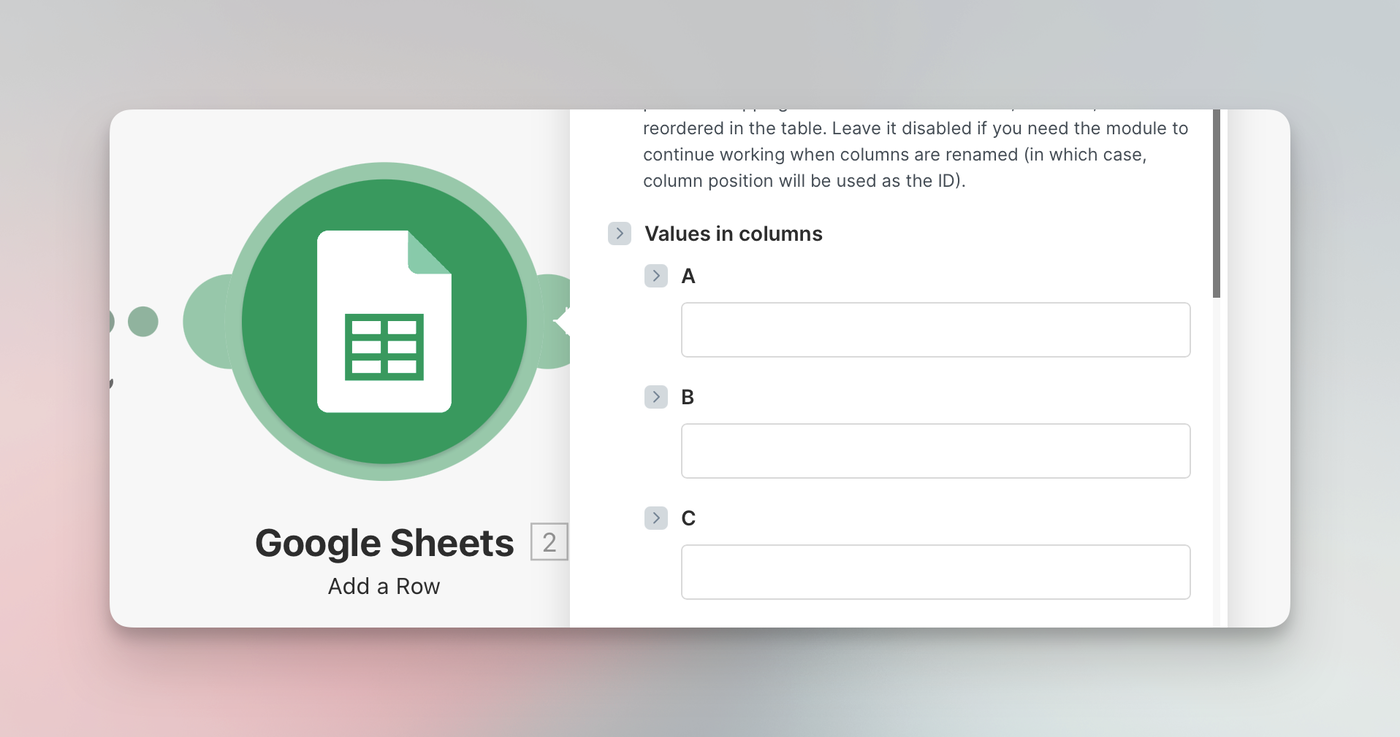
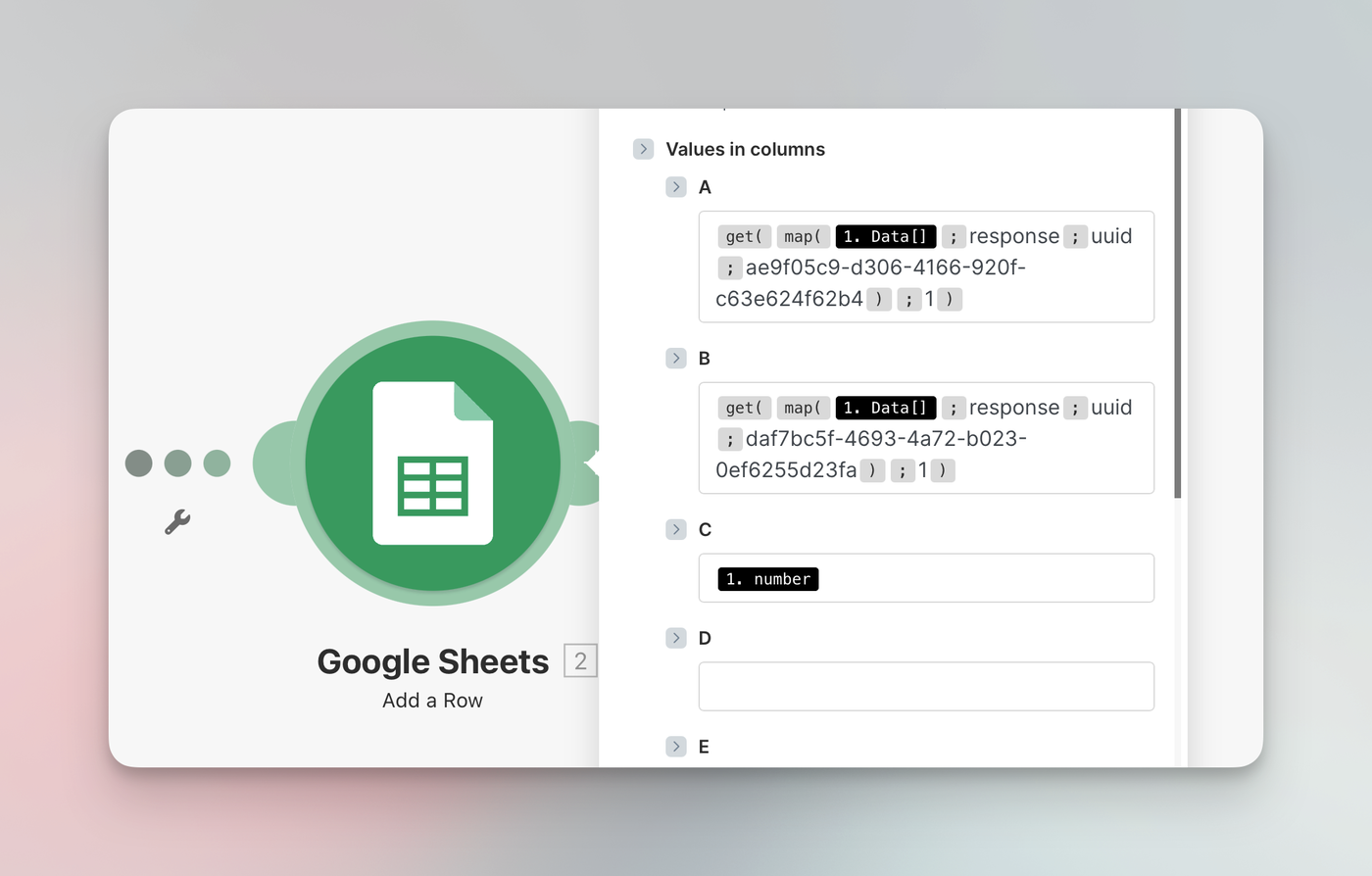
Each column (A-Z) represents a column in your Google Sheet, which also represents a field inside Deftform. To map the Deftform fields with each column, you can use the get() function:
{{get(map(1.data; "response"; "uuid"; "daf7bc5f-4693-4a72-b023-0ef6255d23fa"); 1)}}This basically means “get me the response value where the uuid is daf7bc5f-4693-4a72-b023-0ef6255d23fa”. Given the response example from before, this will return “mike@example.com”. Each field has a unique UUID. You may also use the “Custom key” field when creating or editing a form field to use your own values. Just be sure to not use spaces.
You can now map your fields with the columns individually. Additionally, you can of course use none data keys, like number, to push the submission number to the Sheet. When done, make sure to click “Save” in the Make panel.